Appearance
Mixing Sounds
In this tutorial, we will create Zap effect, like casting a Lightning spell in a fantasy game. This time, we will combine two sounds together to create a more complex effect:
- Initial strike explosion sound
- Continous zap resonance after the initial strike
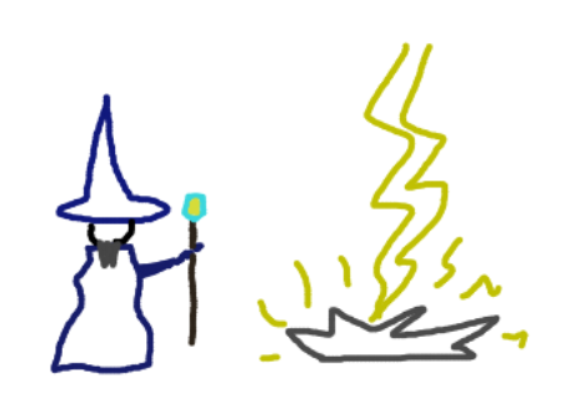
How mixing works?
In order to mix several sounds together, first you need to create separate SFXAssets for each part.
Creating initial strike sound
First of all, please create SFXAsset named "ZapStrike" and open it in the Inspector.
Use the following settings to create initial strike sound:
- Wave: White Noise
- Frequency Ramp: static frequency 0.60
- Envelope:
- Attack: 0.00
- Decay: 0.15
- Sustain: 0.50
- Length: 0.20
- Release: 0.30
- Vibrato:
- Frequency: 5.00
- Amplitude: 0.60
- Skip:
- Strength: 0.50
- Flanger:
- Frequency: 20.00
- Offset: 3.00
This should create a "zappy" explosion sound that we will use as our initial strike.
Creating continous zap resonance
In order to make sound more convincing, we will apply resonating buzzing/zapping sound after initial strike. Lets make another SFXAsset named "ZapResonance" and open it in the Inspector.
Use the following settings to create continous zap resonance sound:
- Wave: Square Wave
- Frequency Ramp: static 0.34
- Envelope:
- Attack: 0.15
- Decay: 0.35
- Sustain: 0.35
- Length: 0.20
- Release: 0.25
- Tremolo:
- Frequency: 16.00
- Amplitude: 0.30
- FM Synth:
- Strength: 1.00
- Divisor: 4.00
- Equalizer:
- Low: 1.00
- Mid: 0.00
- High: 1.00
This should create a buzzing sound.
Mixing two sounds together
Now, we will create final sound that mixes both previous sounds together. In order to do this, you must create a special SFXMixedTrack asset.
Please create new asset by right-clicking in the Project window and selecting Create -> SFXCreator -> SFXMixedTrack and name it "ZapMix". Selecting it, you should see something like this in the Inspector:
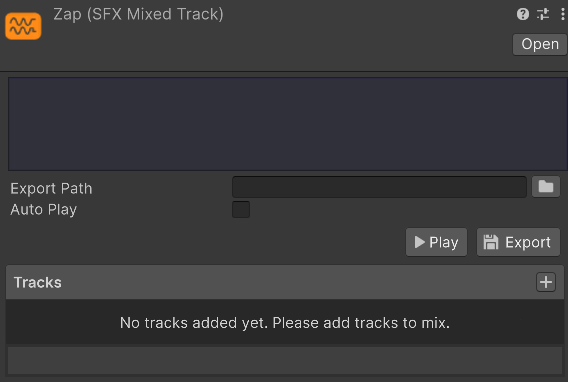
Now, please add two previous tracks, "ZapStrike" and "ZapResonance" to the mixed track. You can do this in two ways:
- Use PLUS button in the Tracks section and select asset from dialog
- Drag & drop assets from Project window into the Tracks section
Adding both tracks, you should see something like this:
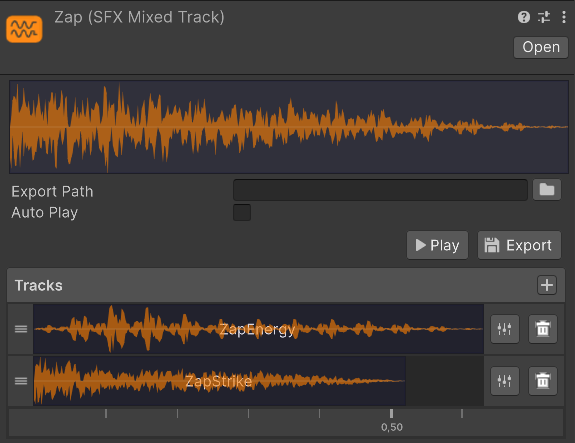
As you can see, both tracks are played simultaneously, starting at the same time. However, we want the resonance track to start a bit later, after the initial strike.
In order to achieve this, drag ZapResonance track a bit to the left, so it will look like this:
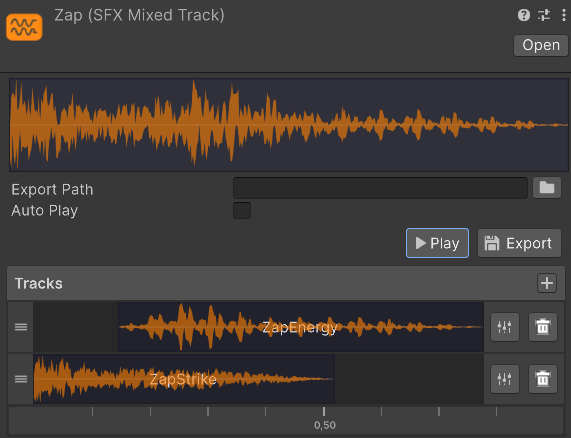
Also, we will make the resonance track a bit quieter, so it does not overpower the initial strike. You can set the volume of particular track inside mixer, by pressing this button:
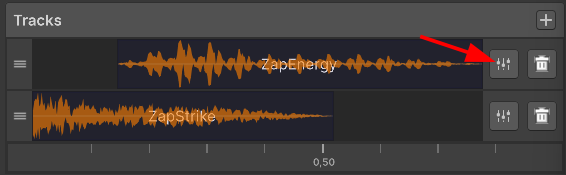
Please set the volume of ZapResonance track to 0.35.
Now, when you play the mixed track, you should hear both sounds combined together, creating convincing zap effect!
Exporting mixed track
Exporting mixed track is the same as exporting regular SFXAsset. Just set the Export Path by pressing the folder button or dragging the folder from Project Window.
You do not need to export individual tracks, only the mixed track.
Thats it!
Thats it! You have created a zap sound effect by mixing two separate sounds together!