Appearance
SFXTrack asset
SFXTrack asset is main SFXCreator asset that contains sound effect data. In this asset, you choose various parameters of the sound effect, such as waveform, envelope, and effects.
SFXTrack does not contain actual audio data, but rather instructions on how to generate the sound effect in real-time. This allows for more dynamic and customizable sound effects that can be easily modified and adjusted.
In order to use the sound you have created, you need to export it to audio file.
Creating SFXTrack asset
To create new SFXTrack asset, right-click in Project window and select Create > SFXCreator > SFXTrack. This will create new SFXTrack asset in your project. You can then select the asset and edit its parameters in Inspector window.
Inspector window
SFXTrack inspector is where you can edit all parameters of the sound effect. The inspector is divided into several sections, each containing different parameters and settings.
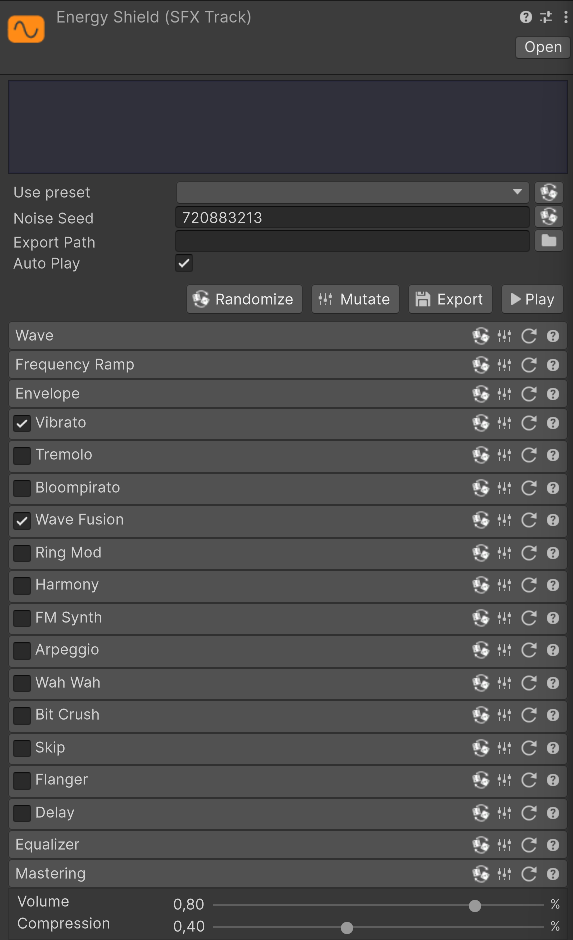
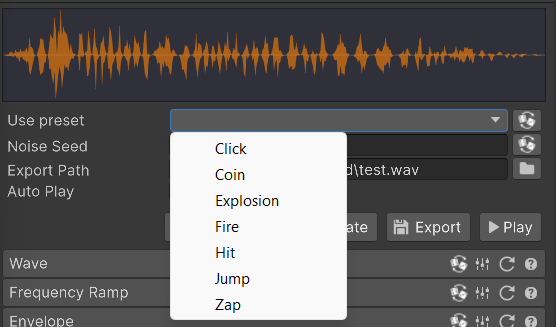
Use Preset
This feature allows you to quickly create a sound from predefined presets. You can choose various presets like "Fire", "Explosion", "Hit" and SFXCreator automatically generate a random sound effect based on the selected preset.
You can always "reroll" the sound by using Randomize button next to Use Preset dropdown.
You can also define your own presets. See Creating Presets for more information.
Noise seed
This parameter is used as a seed for PRNG that is used in several effects. This affects:
- Noise waveform generation
- "Random" curves in various editors
- "Random" notes in Arpeggio effect
You can reroll the seed by using Randomize button next to the field.

WARNING
Due to nature of PRNG, it is not recommended to manually change this value. Noise waveforms may sound glitched and garbled if you use too low or too high values for seed. The Randomize button will always generate musically valid seed.
Exporting
In order to use the sound effect, you have to export it to audio file. You can do this by using the Export button. In order to export the sound, you first need to specify path and filename for the exported audio file.
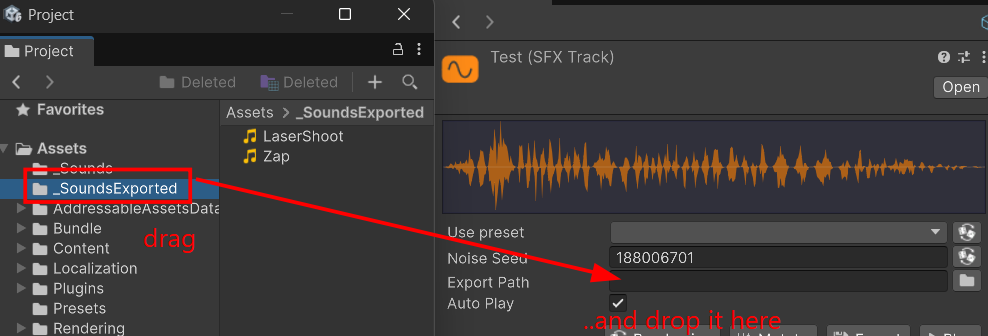
You can do this either by clicking the folder icon next to Export Path field or dragging a folder from Project Window directly to the field.
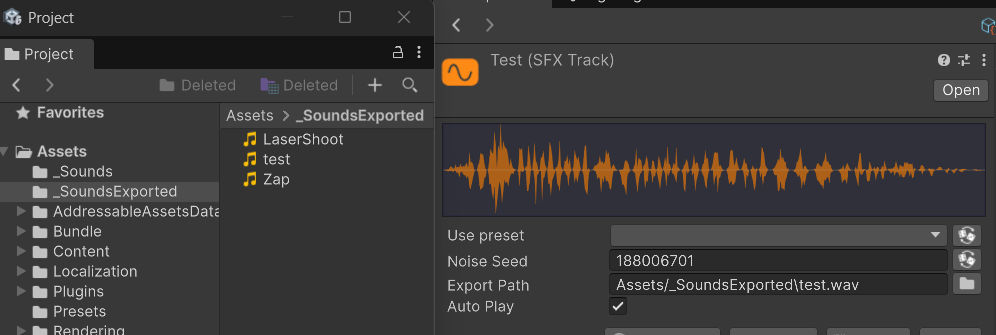
When you set the path, SFXCreator will automatically export the sound effect to specified file. You can always re-export the sound by clicking Export button again.
Auto-play
When ticked, SFXCreator will automatically play the sound effect whenever you change any parameter in the inspector. This is useful for quickly previewing changes to the sound effect.

Randomize
This button randomizes all parameters of the sound effect, creating a completely new sound. This is useful if you are looking for inspiration or want to explore different sound possibilities.
When used, randomizer will do the following things:
- Choose random waveform
- Generate semi-random envelope
- Genenrate random frequency curve
- Apply 1 to 4 random effects with random parameters
You can also randomize individual sections of the sound effect by using Randomize button in each section.

Mutate
This button works similarly to Randomize, but instead of creating completely new sound, it makes small random changes to current sound. This is useful when you are close to desired sound and want to explore slight variations of it.
When clicking Mutate, SFXCreator will make small random changes to the following parameters:
- Mutate the waveform by either leaving it unchanged or changing it to similar waveform (SFXCreator differentiates "sinusoidal", "harsh" and "noise" waveforms and will mutate within those groups)
- Mutate envelope and frequency slightly
- Mutate parameters of each effect slightly
You can also mutate individual sections of the sound effect by using Mutate button in each section.

Modules
Below main settings, you will find a list of various modules that can make up the sound effect. Each module is separate group that can be expanded or collapsed by clicking its header.

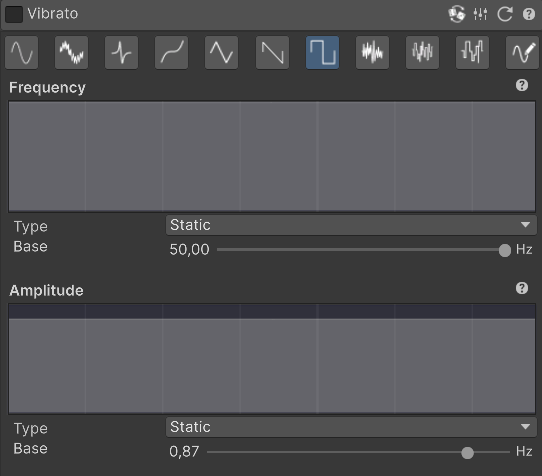
Some modules are always present in the sound effect, such as Waveform, Frequency Ramp and Envelope. Other modules are optional effects that can be turned on by ticking the checkbox next to module name.
If you have used Unity ParticleSystem before, SFXTrack modules work similarly to ParticleSystem modules.
Each module has four buttons in its header: 
- Randomize - Randomizes all parameters in that module
- Mutate - Mutates all parameters in that module
- Reset - Resets all parameters in that module to default values
- Help - Shows short description of the module purpose
All modules are documented in Modules Documentation.