Appearance
SFXMixedTrack asset
SFXMixedTrack asset is special type of SFXCreator asset that allows you to mix multiple SFXTrack assets together to create more complex sound effects. This is useful when you want to combine several simple sounds into one, such as layering different explosion sounds together to create a more impactful explosion effect.
See Tutorial 5: Creating mixed sound effects for step-by-step guide on how to use SFXMixedTrack asset.
Creating SFXMixedTrack asset
To create new SFXMixedTrack asset, right-click in Project window and select Create > SFXCreator > SFXMixedTrack. This will create new SFXMixedTrack asset in your project. You can then select the asset and edit its parameters in Inspector window.
Inspector window
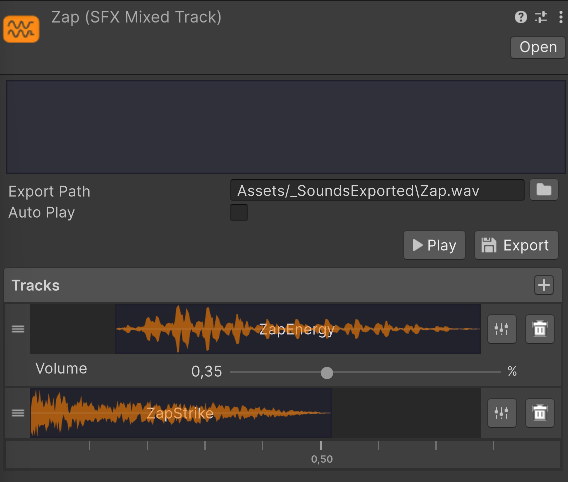
In SFXMixedTrack inspector, you can add multiple SFXTrack assets to be mixed together.
Exporting
In order to use the mixed sound effect, you have to export it to audio file. You can do this by using the Export button. In order to export the sound, you first need to specify path and filename for the exported audio file.
You can do this either by clicking the folder icon next to Export Path field or dragging a folder from Project Window directly to the field. See Exporting SFXTrack asset for more information.
Auto-play
When ticked, SFXCreator will automatically play the mixed sound effect whenever you change any parameter in the inspector. This is useful for quickly previewing changes to the sound effect.
Track list
In this section, you can see all SFXTrack assets that are part of the mixed sound effect. You can add new tracks by clicking Add Track button or by dragging SFXTrack assets from Project window directly to the list.

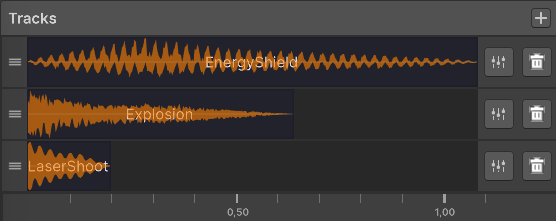
You can also rearrange the order of tracks by grabbing the handle on the left side of each track and dragging it up or down.
You can remove the track by clicking the Remove button on the right side of each track.
Each track has its own volume settings that can be changed by using the Settings button on the right side of each track.
Arranging tracks on timeline
By default, all tracks in the mixed sound effect start playing at the same time. It looks like this:
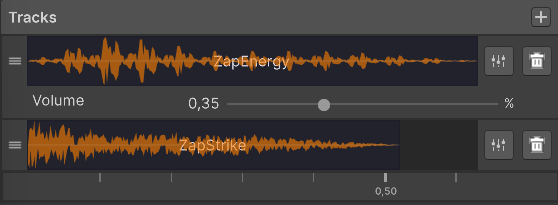
However, you can change the start time of each track by dragging the track horizontally on the timeline. For example, if you want the second track to start playing 0.5 seconds after the first track, you can arrange the tracks like this:
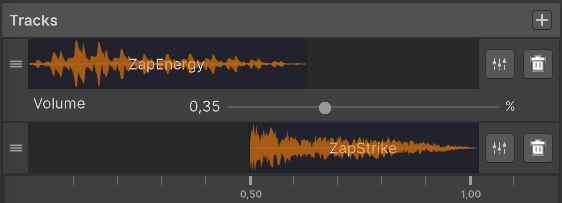
When moving tracks on the timeline, SFXCreator will automatically adjust the total length of the mixed sound effect to fit all tracks.
INFO
Please remember, that you don't have to export SFXTrack assets separately. When you export SFXMixedTrack asset, all included SFXTrack assets will be automatically exported as part of the mixed sound effect.